 SceneSwitch
Stop saying
"can you see my screen now?"
Share one window in your meeting. From then on, a shortcut decides what it shows. No stopping the share, no picking from a list while everyone waits.
One-time purchase. Requires macOS 14 or later.
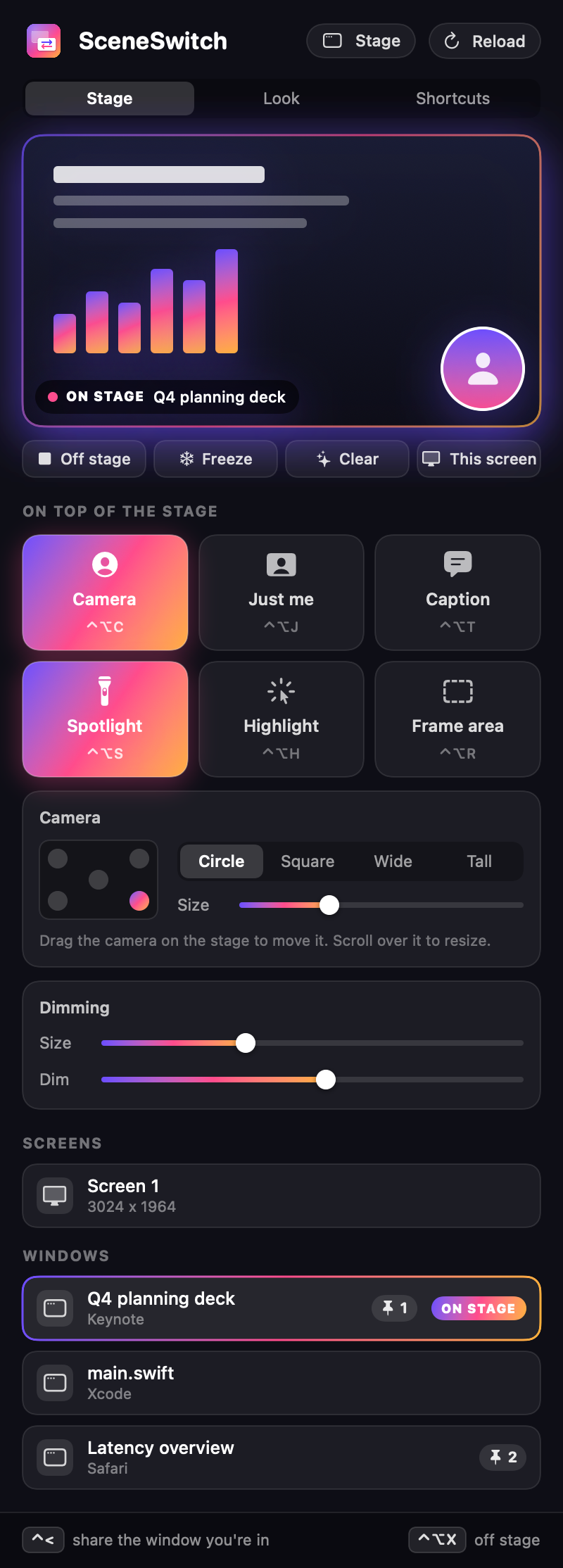
Everything a presenter reaches for
Switch in one keystroke
Press a shortcut in any window and it is on stage. Your meeting app never notices the change.
⌃ <Pin your sources
Give the windows you need a number, and jump straight to each one during the meeting.
⌃⌥ 1 to 9Spotlight
Dim everything except the spot around your pointer, so people look where you look.
⌃⌥ SPointer highlight
A coloured halo follows your pointer, with a ripple on every click.
⌃⌥ HFrame an area
Drag a box around the part that matters. The rest fades back.
⌃⌥ RYour camera on top
A circle, a square, wide or tall, wherever you drag it. Or fill the stage with just you.
⌃⌥ CCaptions
Put a line of text on the stage: the agenda point, a link, the question you are answering.
⌃⌥ TFreeze and step away
Hold the picture while you look something up, or clear the stage to your own logo.
⌃⌥ FYour shortcuts
Every action can be bound to the keys you prefer.
How it works
Share the stage
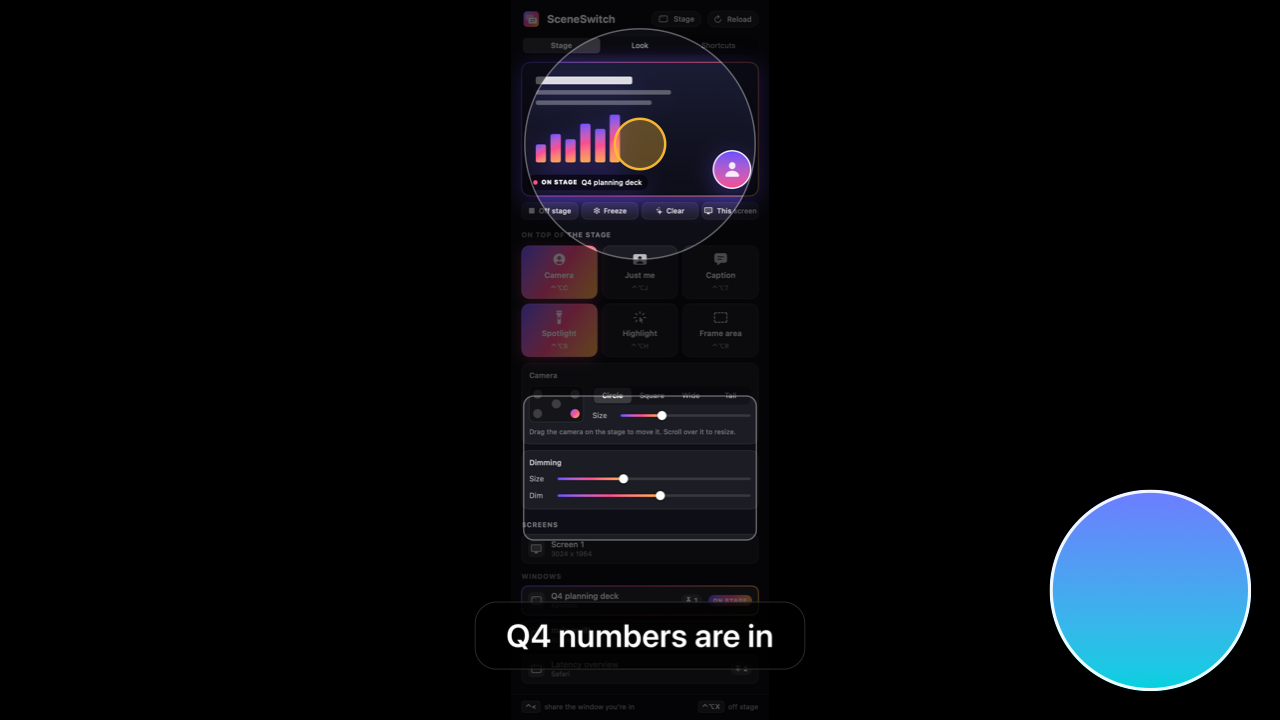
In your meeting app, share the window called SceneSwitch Stage. You do this once.
Work as usual
Move between your apps the way you always do. Nothing changes for you.
Press the shortcut
Whatever window you are in goes on stage. Press it somewhere else to switch.
Private by design
SceneSwitch runs entirely on your Mac. No account, no analytics, no network connections. Nothing is recorded or saved. It asks for screen recording so it can show your windows on the stage, and for the camera only if you turn the camera on.